How to add a project
Projects on the hub come straight from Linear. Two things put a project on the hub — a Showcase label and a Showcase Project Brief document. Once both are in place, everything else is automated.
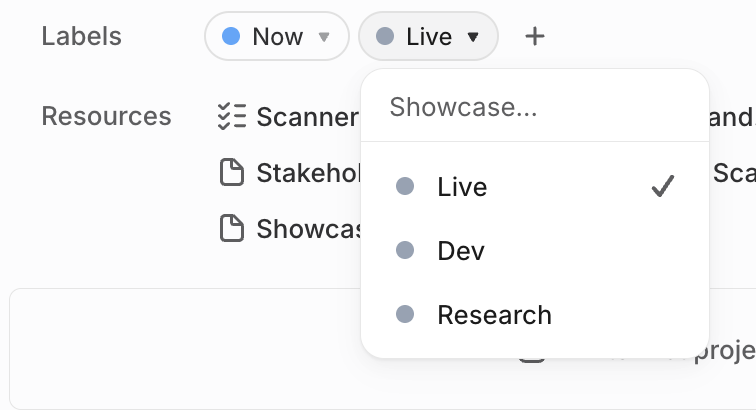
1 Add a showcase label
On the project, add one of the Showcase group labels — Live,
Dev, or Research. It decides which section the project shows up
in (Live / In Development / Research). Add the Stealth
label to hide a project.
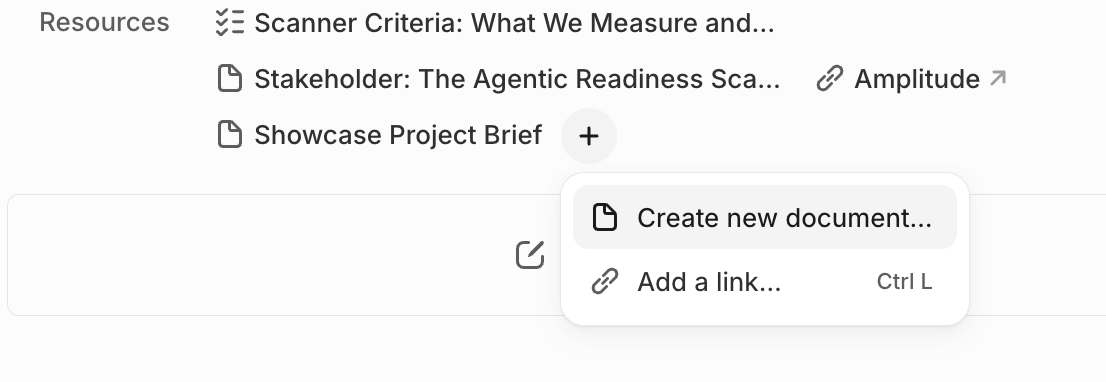
2 Create the brief document
Under Resources on the project, click + → Create new document.
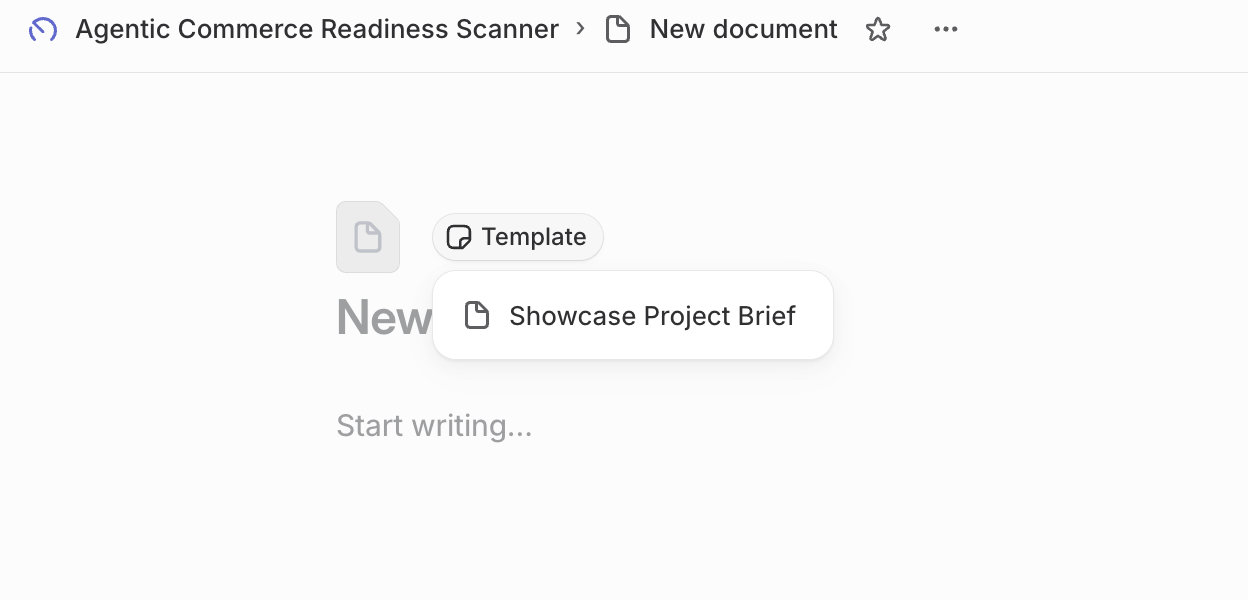
3 Choose the template
Pick the Showcase Project Brief template.
4 Fill out the template
Fill in the sections — each one maps to something on the hub:
- Project One-Liner — the short teaser on the card.
- Project Brief — the full text on the detail page.
- Project URLs — labeled links become buttons (first one is primary).
- Videos — drag in a video file, or paste a Loom / YouTube link.
- Images — drag / paste screenshots (the first one is the hero).
Optional: add a link labeled Amplitude to the project to get an Amplitude button.
✅ As soon as a showcase label and the Project Brief are in place, the rest is automated — the hub updates itself within seconds.